Menus & QR codes
How do you create a QR code menu for your restaurant?
With Swizee, import your menu, review the preview and publish a QR code menu guests can open without an app.
In three steps
Import your menu
Add your PDF or enter dishes in Swizee.
Review the preview
Check sections, prices and languages before publishing.
Publish and scan
Choose a plan, open the real menu on a phone and place the QR code.
What happens when a guest scans the QR code
A guest scans the code on the table and your menu opens in their phone’s browser. They do not need an app. If you change a price in Swizee and publish the menu again, the same QR code shows the updated version. There is no need to reprint it.
1. Add your dishes and prices
Create your Swizee account and add dishes under simple headings such as starters, mains, desserts and drinks. Already have a PDF menu? Import it, then correct anything it has read incorrectly.
- Check every price, extra charge and drink size.
- Describe dishes when the name alone does not explain them.
- Have the kitchen confirm any allergen information.
A short, accurate menu is more useful than a long one full of vague descriptions.
2. Look at the menu on your phone
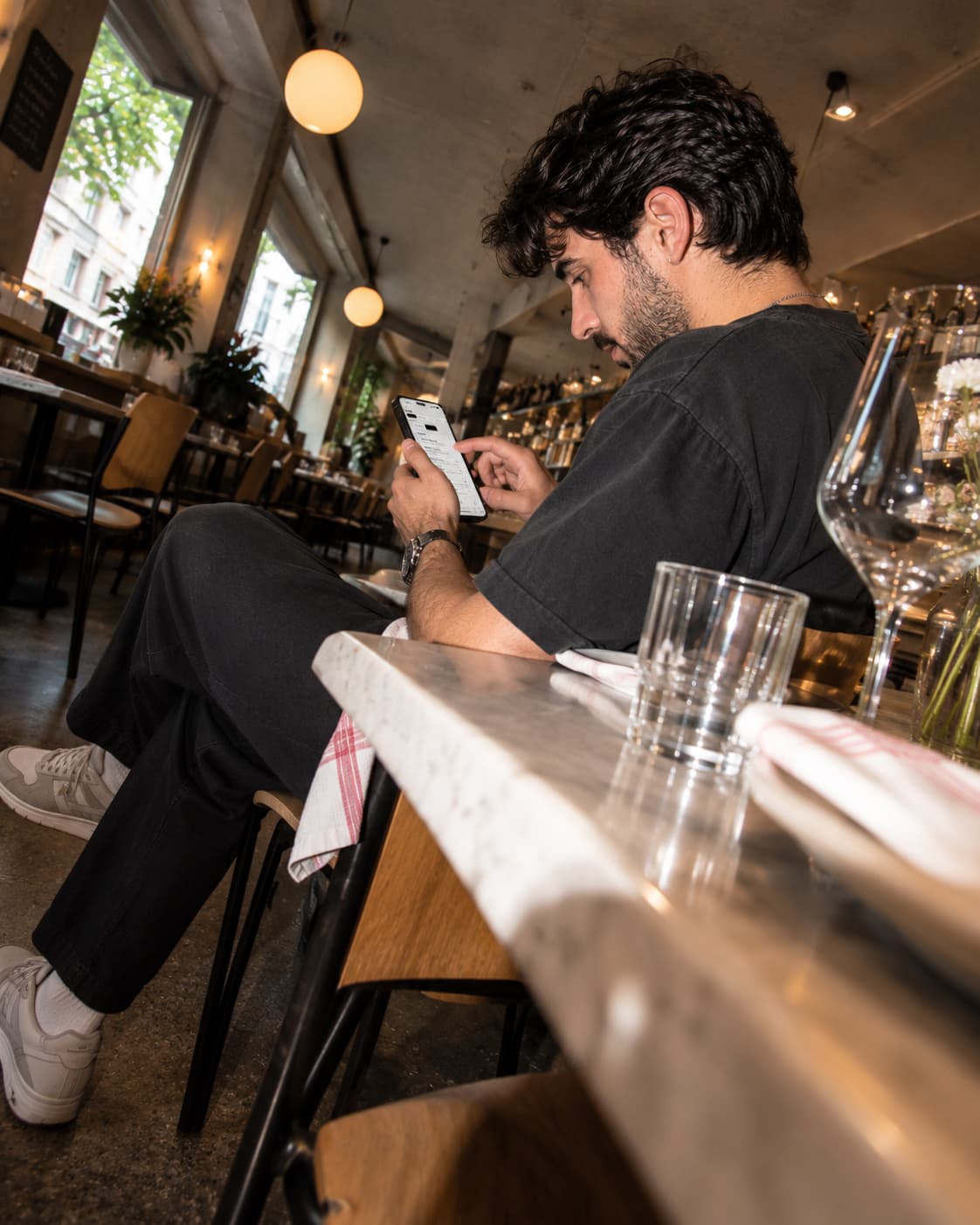
Open the Swizee preview on your phone, just as a guest would. Can you find drinks quickly? Are prices easy to read? Do the photos show what you actually serve? Fix mistakes before publishing.
If you enable other languages, read the translated dish names and ingredients. Creation and preview are free; guests cannot see this version yet.
3. Publish and scan your QR code
Choose a Swizee plan to put the menu online. Scan its QR code with a phone that is not signed into your account. It should open the right restaurant menu with the current dishes and prices.
Test it from a table under your usual lighting. Keep a paper menu available for guests who do not want to use a phone.
Create your QR code menu with Swizee
Create my preview →4. Put the QR code where guests can see it
You can download and print the QR code or order displays in your Swizee account. Put one sample on a table and scan it with two phones. If it is too small or reflects the light, fix that before ordering more.
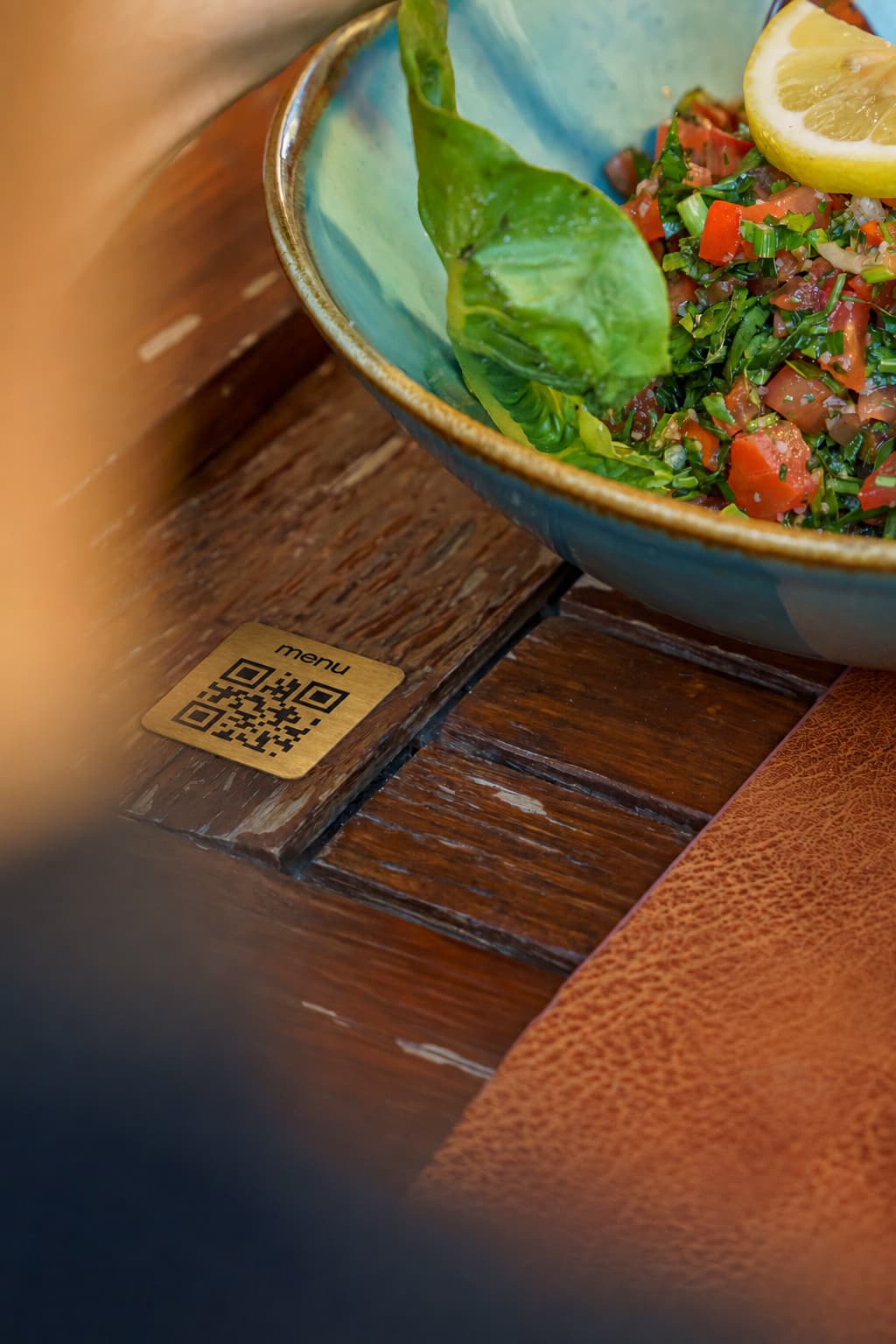
A “Menu” label above the code tells guests what it opens. Before ordering, check the quantity, material and delivery address.
How do you change a price after printing?
Open your menu in Swizee, change the price and publish again. The QR code already on your tables still works and opens the updated menu.
If a dish is sold out today, mark it unavailable. Check the guest view on a phone after any major change.
Questions about this topic
Do guests need an app?
A web menu such as Swizee opens in the phone’s browser. Guests do not need an account.
Must I reprint after changing a price?
Not when the QR keeps the same public address. In Swizee, publish your updated menu and retain the existing supports.